🎯 Key Takeaways
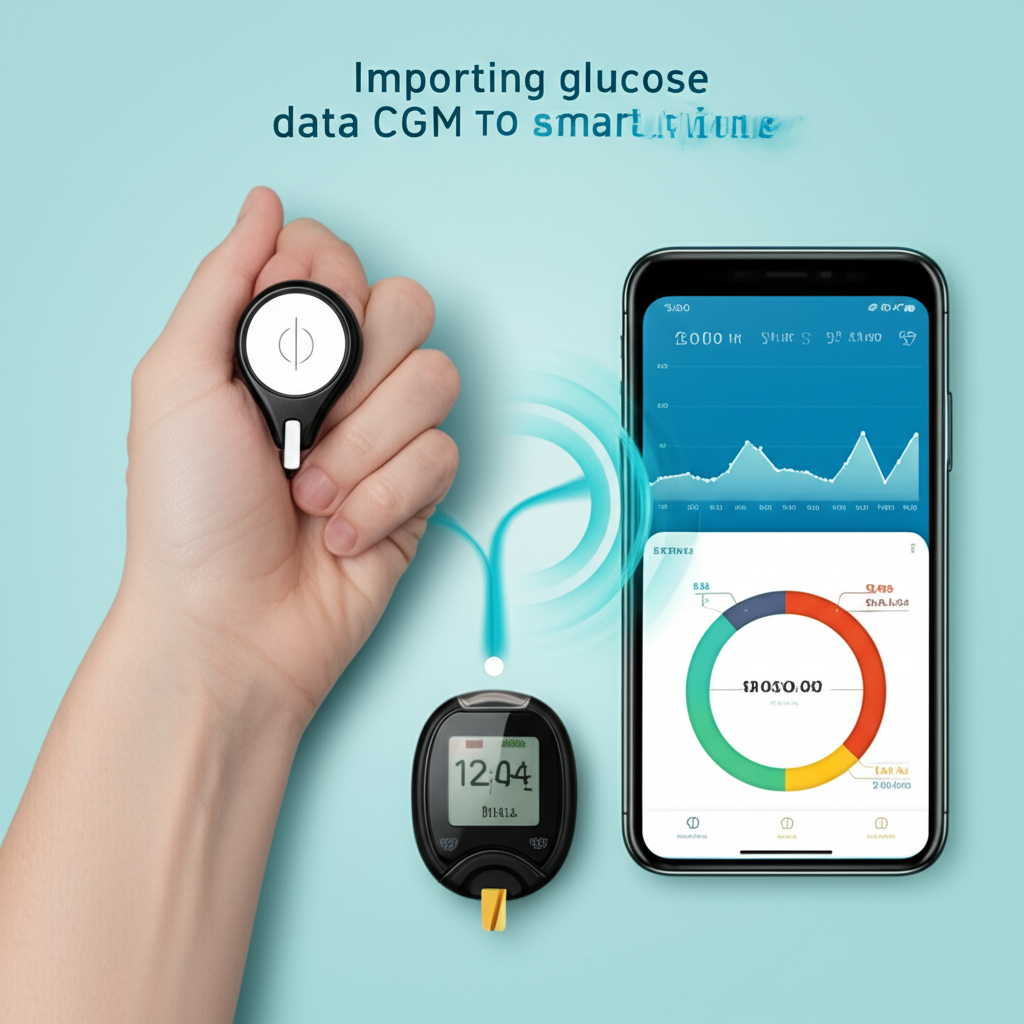
- 60-second process: Export CGM data (30s) + Upload to Health Gheware (10s) + Processing (20s) = Ready for AI analysis
- All major CGMs supported: FreeStyle Libre (LibreView), Dexcom G6/G7 (Clarity), Abbott sensors, and any CSV export
- Multi-source integration: Combine glucose + Google Fit (sleep/activity) + Strava (workouts) for comprehensive AI insights
- Zero manual entry: Automated data import means no typing individual readings—upload files and let AI do the work
- Bank-level security: AES-256 encryption, HIPAA-ready, OAuth 2.0 for all integrations—your health data stays private
You've been wearing a CGM for weeks, collecting thousands of glucose readings. But your CGM app only shows basic stats and real-time numbers—no insights about WHY your glucose spikes or HOW to fix it. The data is there. You just need to get it into an AI-powered analysis tool.
This step-by-step guide shows you exactly how to import your glucose data into My Health Gheware™ in under 60 seconds. We'll cover LibreView (FreeStyle Libre), Dexcom Clarity, manual CSV uploads, plus Google Fit and Strava integration for multi-data correlation. No technical skills required. Just follow the screenshots and you'll be running your first AI analysis within 10 minutes of finishing this tutorial.
New to My Health Gheware™? Sign up in 30 seconds with Google login and get 500 free credits (5 comprehensive AI analyses). Start here →
In This Guide:
- Before You Import Glucose Data: What You'll Need
- Import CGM Data from LibreView (FreeStyle Libre)
- Import Glucose Data from Dexcom Clarity
- 📁 Method 3: Manual CSV Upload (Any CGM)
- 😴 Connect Google Fit (Sleep & Activity Data)
- 🏃 Connect Strava (Workout Data)
- ✔️ Verify Your Data & Run First Analysis
- ⚠️ Troubleshooting Common Issues
- 💡 Best Practices for Ongoing Imports
Before You Import Glucose Data: What You'll Need
Before importing your glucose data, make sure you have:
Required Items (Choose One)
- FreeStyle Libre users: LibreView account credentials (libreview.com)
- Dexcom users: Dexcom Clarity account credentials (clarity.dexcom.com)
- Other CGM users: CSV export file from your CGM provider's web portal
- Manual trackers: Spreadsheet with glucose readings and timestamps
Optional (Recommended for Better Insights)
- Google Fit: For automatic sleep and daily activity tracking
- Strava account: For detailed workout data (cycling, running, swimming)
- 14-90 days of data: More historical data = better pattern recognition
Time commitment: First import takes 2-5 minutes including setup. Subsequent imports take 60 seconds.
Technical difficulty: Beginner-friendly. If you can download a file and click "Upload," you can do this.
Import CGM Data from LibreView (FreeStyle Libre)
FreeStyle Libre users store their CGM data in LibreView, Abbott's cloud platform. Here's how to export it:
Step 1: Log into LibreView
- Go to LibreView.com
- Enter your email and password (the same credentials you use for the FreeStyle Libre app)
- Click "Login"
Note: If you haven't created a LibreView account yet, open the FreeStyle Libre mobile app → Settings → "Upload to LibreView" and follow the setup instructions. This is a one-time process that takes 2 minutes.
Step 2: Navigate to Reports Section
- Once logged in, you'll see your dashboard with recent glucose readings
- Click "Reports" in the left sidebar menu
- You'll see various report options (AGP, Daily Patterns, etc.)
Step 3: Export Glucose Data
- Click the "Export Data" button (usually in the top right corner)
- A dialog box will appear with export options
- Select Date Range: Last 14 days, 30 days, or 90 days (recommend 14-30 days for first import)
- Select Data Type: "Glucose Data" (make sure this is checked)
- Select Format: CSV (comma-separated values)
- Click "Download"
The file will download to your computer as something like LibreView_Glucose_Export_2025-11-09.csv. This takes about 30 seconds.
Step 4: Upload to My Health Gheware
- Go to health.gheware.com and log in
- Click "Data Import" in the main navigation
- Select "Upload Glucose Data"
- Click "Choose File" and select the LibreView CSV you just downloaded
- The system will automatically detect the LibreView format
- Click "Import"
Processing takes 10-20 seconds. You'll see a confirmation message showing:
- Number of glucose readings imported (e.g., "2,016 readings")
- Date range (e.g., "Oct 26, 2025 - Nov 9, 2025")
- Data quality score (e.g., "98% complete" if you have minimal sensor gaps)
🎉 Success! Your LibreView data is now imported. You can proceed to run your first AI analysis. Jump to verification section →
Import Glucose Data from Dexcom Clarity
Dexcom G6 and G7 users store their CGM data in Dexcom Clarity. The export process is nearly identical to LibreView:
Step 1: Log into Dexcom Clarity
- Go to clarity.dexcom.com
- Enter your Dexcom account credentials
- Click "Sign In"
Step 2: Access Data Export
- On the main dashboard, look for the "Share" or "Export" button (top right)
- Click "Export Data"
- Select date range: 7, 14, 30, or 90 days
- Choose "Device Data" (this includes all glucose readings)
- Select CSV format
- Click "Export"
The file downloads as Dexcom_Clarity_Export_YYYY-MM-DD.csv.
Step 3: Upload to My Health Gheware
- Log into health.gheware.com
- Navigate to "Data Import" → "Upload Glucose Data"
- Select the Dexcom CSV file
- The system auto-detects Dexcom Clarity format
- Click "Import"
Processing completes in 15-20 seconds. You'll see confirmation with reading count and date range.
📝 Pro Tip: Calibration Data
Dexcom Clarity exports may include calibration readings (fingerstick values). My Health Gheware automatically filters these out and uses only CGM sensor data for analysis. If you want to include manual fingerstick readings, upload them separately using Method 3 (Manual CSV).
📚 Like this guide? We are writing the complete Diabetes Management Book for India!
Get notified + free chapter →📁 Method 3: Manual CSV Upload (Any CGM)
If your CGM provider isn't LibreView or Dexcom Clarity, you can still import data using a standardized CSV template.
When to Use Manual CSV Upload
- Using a different CGM brand (Medtronic Guardian, Eversense, etc.)
- Importing manual blood glucose meter readings
- Your CGM provider offers CSV export but uses a custom format
- Combining data from multiple sources
Step 1: Download the Template
- Go to health.gheware.com → Data Import → "Download CSV Template"
- Open the template in Excel, Google Sheets, or any spreadsheet program
The template has 3 columns:
| Column | Format | Example |
|---|---|---|
Timestamp |
YYYY-MM-DD HH:MM:SS | 2025-11-09 08:30:00 |
Glucose_mg_dL |
Numeric (40-400) | 128 |
Notes (optional) |
Text | Post-breakfast |
Step 2: Fill in Your Data
You have two options:
Option A: Copy from your CGM export
- Export data from your CGM provider's portal
- Open their CSV file
- Copy the timestamp and glucose columns
- Paste into the My Health Gheware template
- Make sure timestamp format matches (YYYY-MM-DD HH:MM:SS)
Option B: Enter manual readings
- If using a blood glucose meter, manually type each reading with timestamp
- Include at least 4-8 readings per day for meaningful analysis
- Recommended times: Fasting, pre-lunch, 2h post-lunch, pre-dinner, bedtime
Step 3: Save and Upload
- Save the file as CSV format: File → Save As → CSV (Comma delimited)
- Name it something descriptive:
Glucose_Nov2025.csv - Go to health.gheware.com → Data Import → Upload Glucose Data
- Select your CSV file
- Click "Import"
The system validates your data and shows any errors (e.g., invalid date format, glucose values out of range). Fix any errors and re-upload if needed.
😴 Connect Google Fit (Sleep & Activity Data)
Google Fit integration adds sleep duration, sleep stages, daily steps, and heart rate data to your analysis. This enables AI to correlate glucose patterns with sleep quality and activity levels.
Why This Matters
Studies show that poor sleep increases blood sugar by 20-30 mg/dL on average. By connecting Google Fit, My Health Gheware can tell you:
- "Your glucose averages 42 mg/dL higher on nights with less than 6 hours of sleep"
- "Days with 8,000+ steps show 12% better Time in Range"
- "Deep sleep below 1.5 hours correlates with morning glucose spikes"
Learn more: How Sleep Affects Your Blood Sugar
Setup Process (30 Seconds)
- Go to health.gheware.com → Integrations
- Find "Google Fit" card
- Click "Connect with Google"
- A popup appears asking for permissions to access:
- Sleep data
- Activity data (steps, workouts)
- Heart rate data
- Click "Allow"
- You'll be redirected back to Health Gheware with a success message
What gets imported:
- Sleep duration (total sleep time per night)
- Sleep stages (light, deep, REM if tracked by your device)
- Daily step count
- Active minutes
- Heart rate (average and resting)
Data sync: Automatic. Once connected, Google Fit data syncs every 24 hours. No manual re-import needed.
📱 What if I Don't Have Google Fit?
Google Fit works with most fitness trackers and smartwatches: Fitbit, Garmin, Samsung Health, Withings, and many others sync to Google Fit. If you use Apple Health, data doesn't sync directly—but you can use third-party apps like "Health Sync" to bridge Apple Health → Google Fit. Alternatively, track sleep manually in the My Health Gheware app (available soon).
🏃 Connect Strava (Workout Data)
Strava integration is ideal for athletes and active individuals who want to understand how specific workouts affect their glucose levels.
Why This Matters
Exercise impacts glucose differently based on intensity, duration, and timing:
- Moderate cardio (walking, cycling): Typically lowers glucose by 30-50 mg/dL during and after
- High-intensity (HIIT, sprints): May temporarily spike glucose due to stress hormones, then drop
- Resistance training: Complex response—can spike during, then improve insulin sensitivity for 24-48 hours
With Strava connected, My Health Gheware correlates your exact workout data (type, duration, heart rate zones) with glucose responses.
Learn more: Best Exercises for Blood Sugar Control
Setup Process (30 Seconds)
- Go to health.gheware.com → Integrations
- Find "Strava" card
- Click "Connect with Strava"
- Log into your Strava account (if not already logged in)
- Authorize My Health Gheware to access:
- Activity data (runs, rides, swims, etc.)
- Heart rate zones
- Activity timing and duration
- Click "Authorize"
- Redirect back to Health Gheware with confirmation
What gets imported:
- Workout type (running, cycling, swimming, gym, etc.)
- Start time and duration
- Distance and pace
- Heart rate data (average, max, zones)
- Elevation gain (for cycling/hiking)
Data sync: Automatic. New Strava activities sync within 1 hour of completion.
✔️ Verify Your Data & Run First Analysis
After importing glucose data and connecting integrations, verify everything is working correctly:
Step 1: Check Data Dashboard
- Go to health.gheware.com → Dashboard
- You should see:
- Glucose Readings: Total count and date range
- Google Fit Status: "Connected" with most recent sync time
- Strava Status: "Connected" with latest activity
- Review the Data Quality Score (shown as percentage):
- 90-100%: Excellent (minimal data gaps)
- 70-89%: Good (some gaps, still usable)
- <60%: Fair (significant gaps, may affect AI analysis accuracy)
Step 2: Preview Your Data
- Click "View Glucose Graph" to see a visual timeline
- Look for:
- Continuous data (no large gaps indicating sensor failures)
- Realistic values (40-400 mg/dL range)
- Daily patterns (you should see post-meal spikes, overnight trends)
- If you see unusual values (e.g., flat line at 0, spikes to 500), the import may have errors—contact support
Step 3: Run Your First AI Analysis
Now for the exciting part—turning your data into actionable insights:
- Click "AI Insights" in the main menu
- You'll see two options:
- Simple Analysis (20 credits): Quick summary (5 insights, 2-3 minutes)
- Comprehensive Analysis (100 credits): Deep dive (5-7 detailed insights with multi-data correlation, 10 minutes)
- For your first analysis, choose "Comprehensive Analysis" (you have 500 free credits)
- Click "Generate Insights"
- The AI processes your data (10 minutes). You can leave the page—you'll get an email notification when ready
What to Expect in Your First Report
Your comprehensive AI analysis will include:
- Time in Range (TIR) metrics: Percentage of time in 70-180 mg/dL target range
- Sleep-glucose correlation: "Your glucose averages [X] mg/dL higher on nights with <6 hours sleep"
- Activity impact: "Days with [Y] steps show [Z]% better TIR"
- Meal patterns: "Post-dinner glucose spikes average [A] mg/dL higher than other meals"
- 5-7 specific recommendations: Actionable steps to improve glucose control
Learn how to interpret these insights: How to Read Your Glucose Data Like a Doctor
🎉 Congratulations! You've successfully imported your health data and run your first AI analysis. Now you have evidence-based insights to improve your glucose control. View your insights dashboard →
⚠️ Troubleshooting Common Issues
Issue 1: "File Format Not Recognized"
Cause: CSV file doesn't match expected format (LibreView, Dexcom, or template)
Solution:
- Make sure you exported to CSV format (not Excel .xlsx or PDF)
- Open the file in a text editor—it should have comma-separated values
- If using manual CSV, ensure column headers match exactly:
Timestamp,Glucose_mg_dL,Notes - Try using the Manual CSV method with the standard template
Issue 2: "Invalid Date Format"
Cause: Timestamps don't match the required format (YYYY-MM-DD HH:MM:SS)
Solution:
- Check your timestamp column—it should look like:
2025-11-09 14:30:00 - Common mistake: Using MM/DD/YYYY instead of YYYY-MM-DD
- Use Excel's "Format Cells" → Custom →
yyyy-mm-dd hh:mm:ssto convert
Issue 3: "Glucose Values Out of Range"
Cause: Some glucose values are below 40 or above 400 mg/dL (impossible or sensor errors)
Solution:
- Review your CSV file for extreme values
- Values like
0or999often indicate sensor errors—delete these rows - If using mmol/L instead of mg/dL, convert:
mg/dL = mmol/L × 18
Issue 4: Google Fit Shows "No Data"
Cause: Google Fit integration connected, but no sleep/activity data available
Solution:
- Make sure you're actually tracking sleep with a device (smartwatch, fitness tracker)
- Check Google Fit app on your phone—does it show sleep data there?
- Google Fit requires at least 3 days of sleep data before we can analyze patterns
- If you just started tracking sleep, wait 3-7 days then re-run analysis
Issue 5: Strava Activities Not Showing Up
Cause: Strava integration connected but activities aren't syncing
Solution:
- Check Strava privacy settings—make sure activities aren't set to "Private" (we can only sync public or followers-only activities)
- Re-authorize the integration: health.gheware.com → Integrations → Strava → "Reconnect"
- New activities sync within 1 hour—be patient if you just finished a workout
Still Having Issues?
Contact our support team:
- Email: support@gheware.com (response within 24 hours)
- Live Chat: health.gheware.com → Click chat icon (Mon-Fri, 9am-6pm IST)
- Documentation: health.gheware.com/docs (searchable help center)
💡 Best Practices for Ongoing Imports
1. Import Data Every 14 Days
For optimal analysis, import new glucose data bi-weekly (every 2 weeks):
- Why 14 days? Provides enough data to spot patterns without overwhelming the AI
- Set a reminder: Every other Sunday night, export LibreView/Dexcom data and upload
- Run analysis after each import: Track your progress over time
2. Keep Google Fit and Strava Connected
Once connected, these integrations sync automatically—no manual work required. Just make sure:
- You wear your fitness tracker/smartwatch consistently (especially overnight for sleep tracking)
- Your devices sync to Google Fit daily (most do this automatically)
- You log workouts in Strava (or use auto-detect feature)
3. Include Meal and Medication Notes
When exporting from LibreView or Dexcom, some systems allow you to add notes. Use this to tag:
- Meals: "Breakfast," "Lunch," "Dinner," "Snack"
- Specific foods: "Pizza," "Salad," "Rice"
- Medications: "Insulin 8 units," "Metformin 500mg"
- Events: "Stressed," "Sick," "Traveled"
These notes help the AI provide more specific insights like "Post-pizza glucose spikes average 85 mg/dL higher than other dinners."
4. Archive Your Data
Keep a backup of your CSV exports:
- Create a folder:
Documents/HealthData/Glucose_Exports/ - Save each export with the date:
LibreView_2025-11-09.csv - This ensures you never lose historical data if a CGM provider changes their system
5. Compare Progress Over Time
After 2-3 imports (1 month of tracking), you can:
- Compare Time in Range month-over-month
- See if specific changes (diet, exercise, sleep improvements) are working
- Share trend reports with your healthcare provider
My Health Gheware's "Progress" dashboard shows these trends automatically.
6. Update Integrations When Devices Change
If you switch fitness trackers or smartwatches:
- Make sure the new device syncs to Google Fit
- Reconnect Strava if you start using a different GPS watch
- No action needed if just upgrading within the same ecosystem (e.g., Fitbit Charge 5 → Fitbit Charge 6)
IIT Madras alumnus and founder of Gheware Technologies, with 25+ years spanning top investment banks (JPMorgan, Deutsche Bank, Morgan Stanley) and entrepreneurship. When both he and his wife were diagnosed with diabetes, Rajesh applied his decades of data analytics expertise to build My Health Gheware™—an AI platform that helped them understand and manage their condition through multi-data correlation. His mission: help people get rid of diabetes through personalized, data-driven insights. He also founded TradeGheware (portfolio analytics) to democratize investment insights for retail traders.
💬 Which CGM system are you using—FreeStyle Libre, Dexcom, or something else? Did you have any trouble with the export process?
Share your experience in the comments—it helps others who might be using the same system!
Last Reviewed: January 2026
🎁 Before You Go...
Get our FREE CGM Beginner's Guide and start improving your blood sugar today!
Learn how to read and interpret your CGM data like a pro with our comprehensive guide.
Download Now (Free) →